 New
New
The existing document will be discarded and replaced with a blank document.
Security prompt:
- Yes: All content will be deleted and a blank document will be created.
- No: All content remains unchanged.
 Open
Open
Use Open to load AlphadiTab files (.atb) into the application.
 Save
Save
The entire document is saved as an .atb file.
The following are saved:
- all data
- all analyses performed (including all entries and results)
Save
The entire document can be saved under a different name and in a different location.
Note: Excel files
Excel files can be:
- be opened in AlphadiTab using drag & drop or
- be imported using the Import button in the Edit tab.
 Next Not Match
Finds the next cell in the column that differs from the selected cell.
 Previous not Match
Finds the previous cell that differs from the selected cell in the column.
 Number
Converts the cell values of the selected columns to number format, if possible.
 Text
Text
Converts the cell contents of the selected columns to text format.
 Date
Date
Converts the cell format of the selected columns to a date format.
 Time
Time
Converts the cell format of the selected columns to a time format.
 Stack
Stack
Stacks multiple columns one below the other and uses the column label as a grouping.
 Unstack
Unstacks a data series based on a selected category.
 Import
Imports Excel tables.
Caution:
- During import, all existing content in the document will be overwritten.
- Opening a new tab does not prevent data loss, as the entire document is always replaced.
 Export
Exports all worksheets to an Excel file.
 FlowCharter
Provides a form for creating process flowcharts.
 VOP
VOP
Creates a new worksheet with a VOP.
 VOB
VOB
Creates a new worksheet with a VOB.
 VOC
VOC
Creates a new worksheet with a VOC.
 VOE
VOE
Creates a new worksheet with a VOE.
 Random Data
Generates random data based on various statistical distributions.
 Distribution Test
Checks whether one or more selected distributions are suitable for representing the data.
 Normality Test
Uses various test methods (default: Anderson-Darling) to check whether the data in a column is normally distributed.
 Bar Chart
Creates bar or column charts in various configurations.
 Pie Chart
Creates pie charts in various configurations.
 Box plot
Creates boxplots in various configurations.
 Histogram
Creates histograms in various configurations.
 Correlation
Creates correlation diagrams in various configurations.
*Regression models can be displayed optionally.
 Timeseries
Creates time series diagrams in various configurations.
 MSA 1
MSA 1
Performs a measurement system analysis (MSA 1).
 MSA 2 – continuous
Performs a measurement system analysis for continuous characteristics.
MSA 2 – attributive
Performs a measurement system analysis for attributive characteristics.
 Cp / Cpk
Performs a process capability analysis for different distributions.
 Data collection plan
Creates a form for a data collection plan.
 Ishikawa
Creates an Ishikawa diagram for cause analysis (cause-and-effect diagram).
 C & E Matrix
Creates a cause-and-effect matrix for evaluating influencing factors.
 Pareto
Creates a Pareto chart for prioritizing causes or errors.
Hypothesis Tests
 2-Sample Proportion
Performs a two-sample proportion test.
 2-sample F-test
Performs a two-sample F-test to compare variances.
 2-sample T-test
Performs a two-sample t-test to compare means.
 Equal variances
Checks whether two samples have equal variances.
 ANOVA
ANOVA
Performs an analysis of variance (ANOVA).
Sample size and test power
 Power
Power
Calculates the test power of statistical tests.
 Sample Size
Calculates the required sample size.
Regression
 Simple
Performs a simple linear regression.
 Multiple
Performs a multiple linear regression.
DoE (Design of Experiments)
 Full factorial
Creates a full factorial experimental design for the systematic investigation of all factor combinations.
 Partial factorial
Creates a partial factorial experimental design to reduce the experimental effort while analyzing the main effects.
FMEA
 Design
Creates a design FMEA to analyze potential errors at the product or design level.
 Process
Creates a process FMEA to analyze potential failures within processes.
 Action plan
Creates an action plan for structured planning, tracking, and documentation of improvement measures.
The Control tab provides statistical control charts for monitoring and stabilizing processes.
Control charts
 I
I
Creates an individual control chart (I-chart) for monitoring individual measured values.
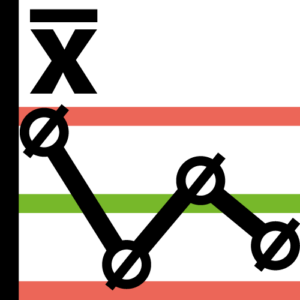 X̄ (Xquer)
Creates a mean control chart (X̄ chart) for monitoring process means.
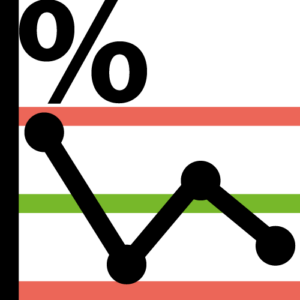 P
P
Creates a P control chart for monitoring the proportion of defective units.
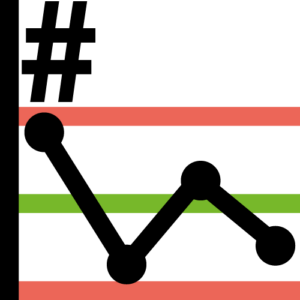 NP
NP
Creates an NP control chart for monitoring the number of defective units with a constant sample size.
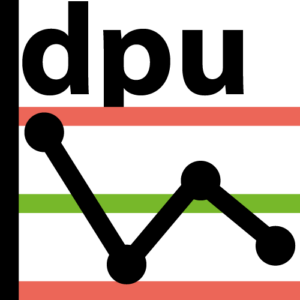 U
U
Creates a U control chart for monitoring defects per unit.
 C
C
Creates a C control chart to monitor the number of defects at a constant sample size.